HOOP JAM Controls: Keyboard, Controller & Sprint
Check the official control mappings and the recorded E/F key difference before practising passes, steals, shooting and sprinting.
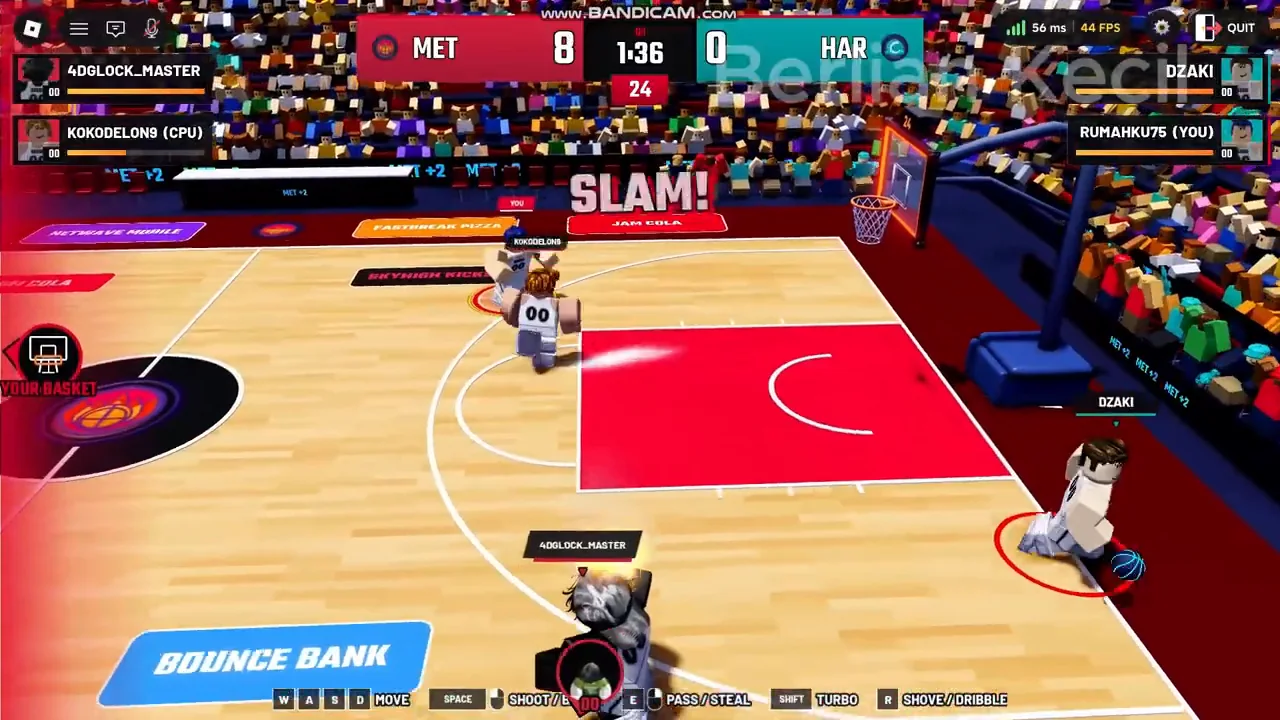
Keyboard controls from the official description
| Input | Official action |
|---|---|
| WASD | Move |
| Space | Shoot / Dunk |
| F | Pass / Steal |
| Shift | Sprint |
| R | Dribble / Shove |
A shared input can have a different function when possession changes. Practise both attacking and defending so a pass input is not confused with a steal attempt.
Xbox and PlayStation controller controls
| Xbox / PlayStation input | Official action |
|---|---|
| Left stick | Move |
| X / □ | Shoot / Steal |
| Y / △ | Jump / Block |
| A / ✕ | Pass |
| B / ○ | Dribble / Shove |
| RB / R1 | Sprint |
For PlayStation, □ is Square, △ is Triangle, ✕ is Cross and ○ is Circle. The Xbox X button and the PlayStation Cross button belong to different rows in this mapping.
Sprinting and the recorded tutorial
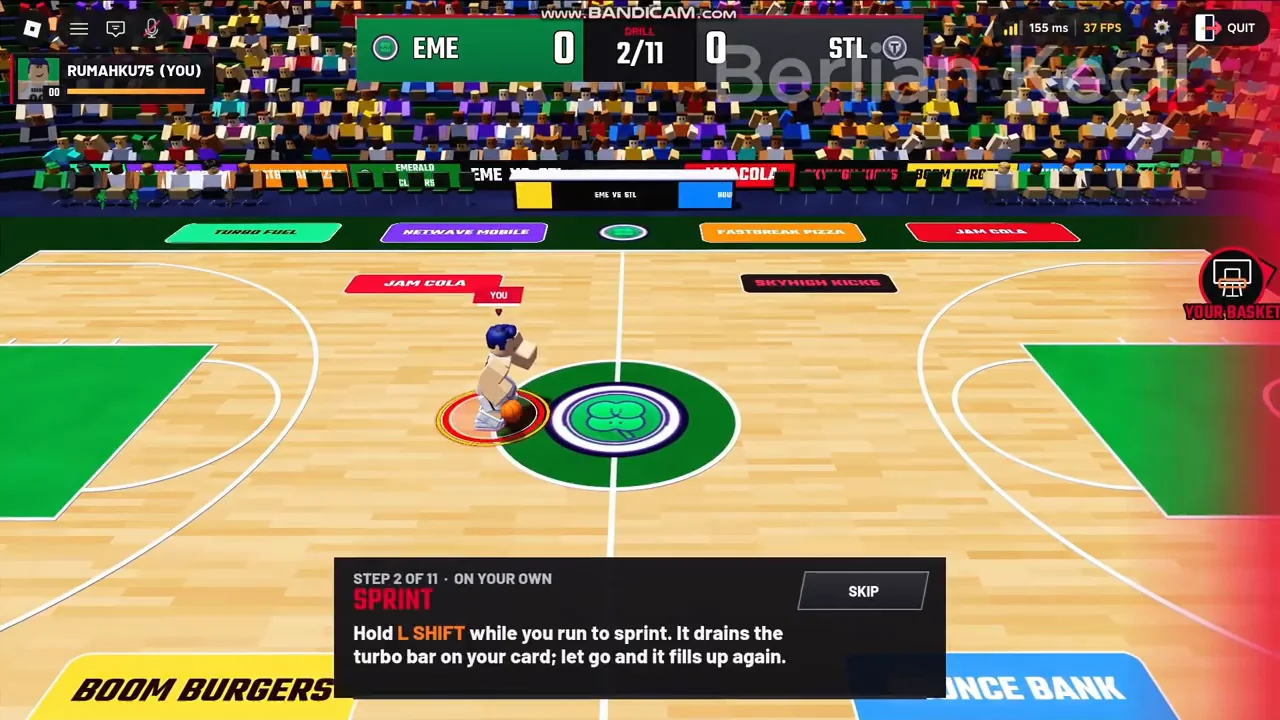
The official keyboard sprint input is Shift. The reviewed tutorial says turbo drains while sprinting and refills after you release the key. Release Shift between bursts to recover turbo; no exact refill time or speed multiplier has been verified.
A later recorded tip shows L SHIFT + E for an alley-oop when a teammate is free near the rim and the ball carrier is past half court. That E binding belongs to the recorded version. Check the current HUD before trying it on an updated server.
Shooting, dunking and blocking
On keyboard, Space is officially listed as Shoot/Dunk. On controller, X/□ is listed as Shoot/Steal, while Y/△ is Jump/Block. The official keyboard list does not give a separate block key, and the controller list does not separately describe a dunk timing formula.
The recorded lobby hint says sprint plus shoot near the rim produces a dunk. Approach the rim with the ball, sprint and use the shoot input shown by your game. The exact activation distance and timing window are unverified, so this is a practical starting action without a guaranteed range threshold.
Mobile and input troubleshooting
A complete mobile touch layout has not been verified for this guide. Follow the labels shown by the game on your device. Keyboard letters should not be interpreted as mobile touch instructions.
- Check possession when a button performs a different action.
- Confirm the device column, especially controller Pass at A/✕.
- For the E/F difference, use the current server HUD.
- If controls changed after an update, check the current tutorial or settings before practising a technique based on older footage.